Which Is the Best Monitor Worth Buying for Mac Mini You’ve Ever Tried?
This question shows up everywhere—and honestly, it makes sense. The Apple Mac Mini is ridiculously powerful for its size, but pairing it with the wrong monitor completely wastes its potential.
Before you rush into buying one, there are a few things you absolutely need to understand first—because with Mac Mini setups, the monitor matters just as much as the computer itself.
1. Apple Studio Display (ASD) + 3 Years Apple Care

👉 Best Overall & Best Native Mac Experience
This is the monitor most Mac Mini users wish they bought first.
Everything about it is built for macOS:
- Stunning 5K Retina resolution
- P3 wide color gamut
- 600 nits brightness
- Built-in speakers, camera, and mic
Why it stands out:
- Perfect macOS integration
- Zero compatibility issues
- Ultra-sharp text and visuals
Common concern: price
Yes, it’s expensive—but it eliminates the need to “upgrade later.”
Verdict:
If you want a flawless Mac experience, this is the one.

2. BenQ PD3225U
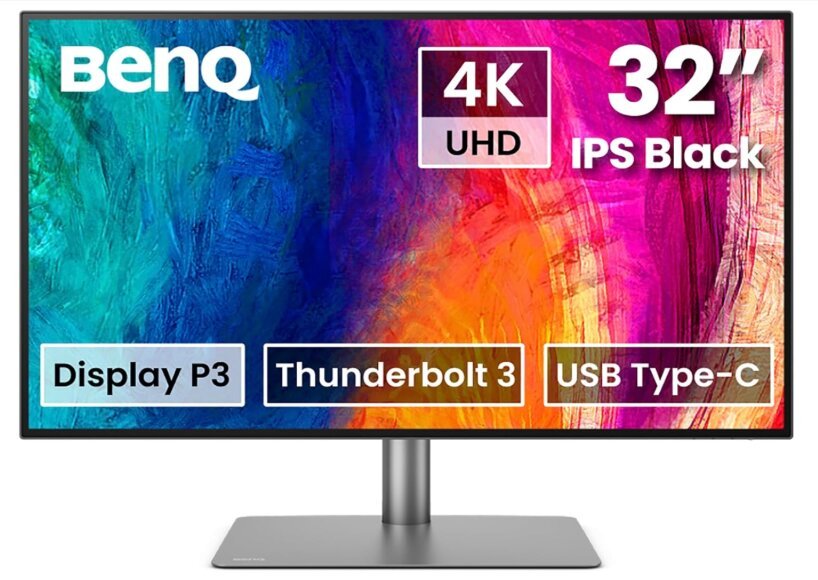
👉 Best for Designers & Creators
BenQ built this specifically for creative professionals.
Pros:
- Excellent color accuracy (factory calibrated)
- Thunderbolt 3 support
- DualView for side-by-side color modes
- Great ergonomics
Cons:
- Not as sharp as 5K displays
- Slightly more “technical” setup
Verdict:
If you care about color precision more than brand ecosystem, this is a top-tier choice.
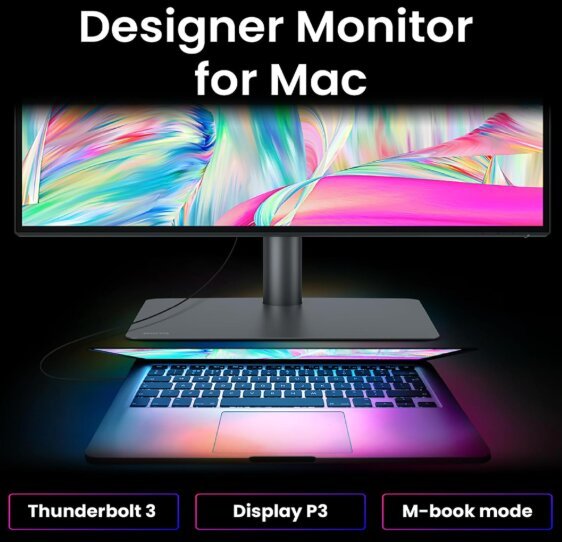
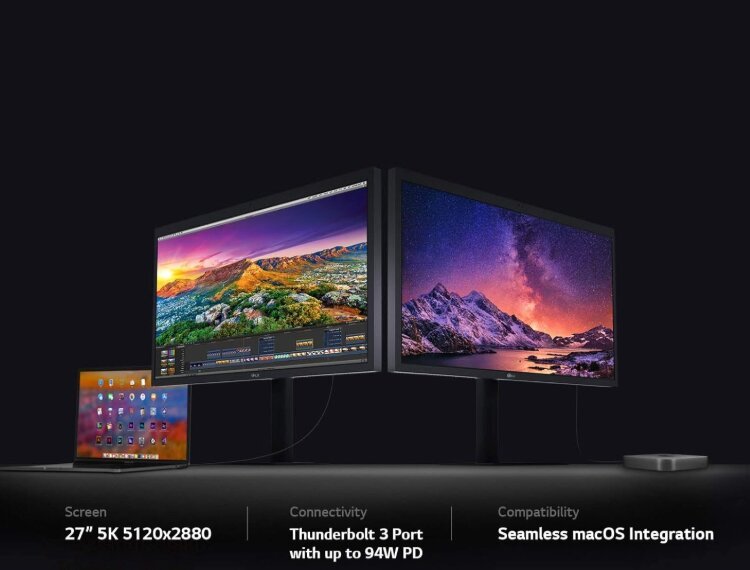
3. LG UltraFine 27MD5KL-B
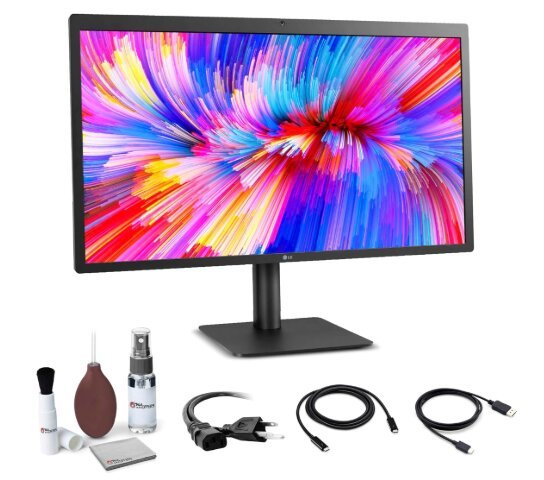
👉 Best Apple Alternative (5K)
This is the closest thing to Apple’s display—without being Apple.
Pros:
- 5K resolution
- Tight macOS integration
- Great brightness and color
Cons:
- Build quality isn’t as premium
- Design feels dated
Verdict:
A strong alternative if you want 5K without going fully Apple.
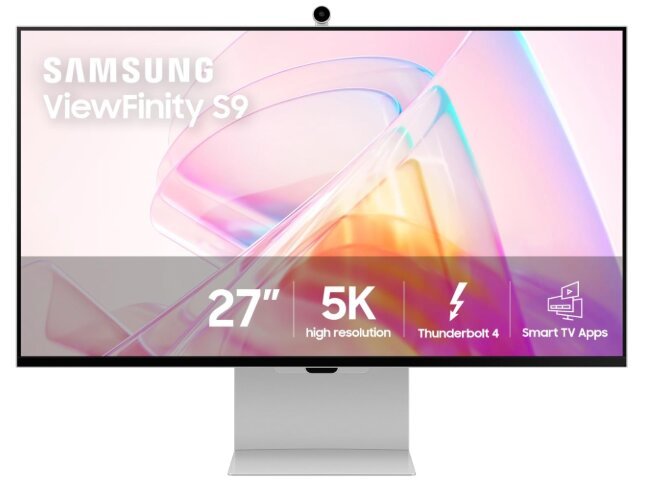
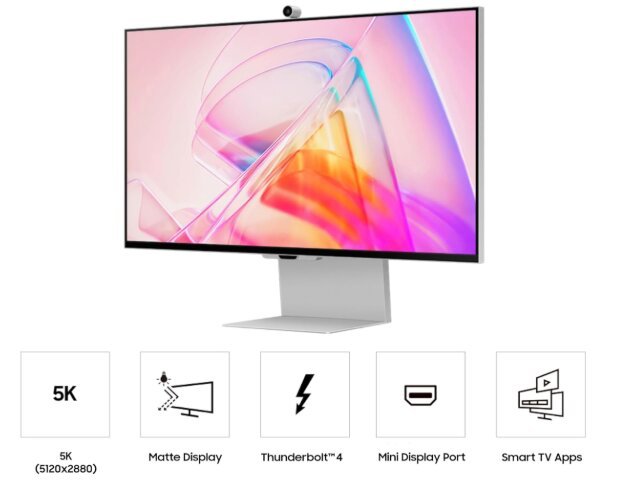
4. Samsung ViewFinity S9
👉 Best 5K Value Option
Samsung’s answer to Apple’s dominance.
Pros:
- 5K resolution
- Good color accuracy
- More affordable than Apple
Cons:
- Software isn’t as polished
- macOS integration isn’t perfect
Verdict:
Best balance between price and high resolution.
5. Dell UltraSharp U3223QE
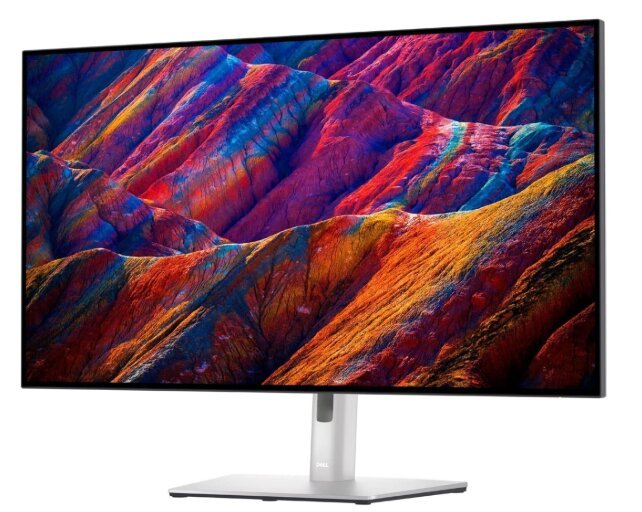
👉 Best 4K Productivity Monitor
If you don’t need 5K, this is a powerhouse.
Pros:
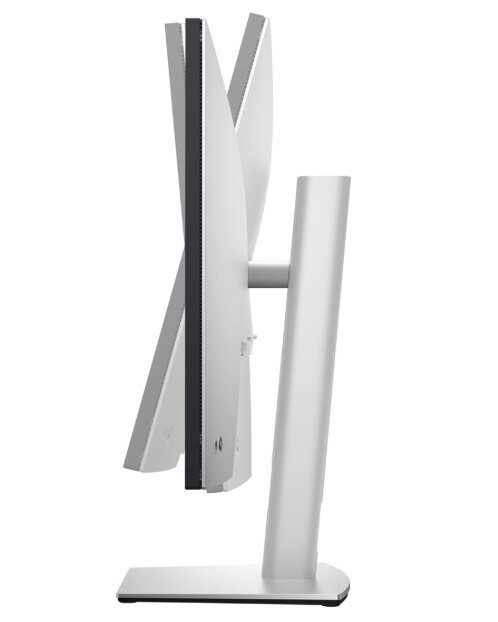
- Large 32-inch display
- IPS Black technology (better contrast)
- Tons of ports (USB hub built-in)
Cons:
- Lower pixel density than 5K
- Not as sharp for text
Verdict:
Perfect for multitasking, coding, and general productivity.
Why Cheap Monitors Usually Disappoint
A lot of people try to save money here—and regret it.
Common problems:
- Poor color accuracy
- Washed-out brightness
- Limited ports
- No USB-C or Thunderbolt
- Cheap stands with no adjustability
And the biggest issue?
👉 They don’t match the Mac Mini’s capabilities.
You end up paying for performance you never see.
What Actually Matters When Choosing a Monitor for Mac Mini
1. Color Accuracy (Non-Negotiable for Creative Work)
Mac Minis are often used for video editing, photography, and design, not just casual browsing.
That means:
- Wide P3 color gamut
- Factory calibration
- True-to-life tones
If your monitor can’t reproduce accurate colors, your edits won’t match what others see. Simple as that.
2. Brightness (Not Just About “Looking Bright”)
Brightness affects how well you see:
- Highlights
- Shadows
- Contrast balance
A monitor with ~600 nits (or solid HDR brightness handling) prevents washed-out visuals and clipping.
This is especially important for HDR content and professional workflows.
3. Resolution (Mac Mini Can Handle More Than You Think)
The Mac Mini can:
- Drive up to 6K on a single display
- Handle multiple monitors
- Even push 8K in certain dual-display setups
So pairing it with a low-resolution panel is basically bottlenecking your own system.
4. HDR Support (Future-Proofing)
Modern editing tools increasingly rely on:
- HDR10
- Dolby Vision
Without HDR support, you’re already behind—especially if you work with video.
5. Ergonomics (You’ll Feel This Daily)
You want:
- Height adjustment
- Tilt and swivel
- Comfortable eye-level positioning
This isn’t a luxury—it’s about avoiding neck and back strain over long sessions.
6. Connectivity (Clean Setup = Better Workflow)
Look for:
- Thunderbolt / USB-C
- HDMI
- DisplayPort 1.4
Thunderbolt is especially important because it:
- Transfers data faster
- Powers devices
- Reduces cable clutter
Best Monitors for Mac Mini (Top Picks Overall)
Here are some of the most talked-about and widely recommended options:
- Apple Studio Display
- BenQ PD3220U
- LG UltraFine 27MD5KL-B
- Samsung ViewFinity S9
- Apple Pro Display XDR
- Dell UltraSharp U3223QE
If money were no object, the Apple Pro Display XDR would dominate this list. Its color accuracy and image fidelity are on another level—but realistically, it’s out of reach for most people.
That’s why the real “sweet spot” tends to land around:
- Apple Studio Display
- BenQ PD3220U
One Thing Most Buyers Overlook
Before buying anything, check the Mac Mini display support specs.
The system can run multiple displays—but:
- Resolution limits vary
- Refresh rates change depending on setup
- Port usage affects output
Skipping this step is how people end up with mismatched setups.
Common Monitor Setup Problems (and Fixes)
Blurry text on 4K monitors?
→ Use macOS scaling settings properly (or go 5K for best clarity)
Too many cables?
→ Use Thunderbolt for single-cable setup
Colors don’t look right?
→ Enable correct color profile (P3 or sRGB depending on use)
Bottom Line: Which Monitor Is Actually the Best?
If “best” means:
- Absolute performance → Apple Pro Display XDR
- Best real-world choice → Apple Studio Display
- Best value for creatives → BenQ PD3220U
But for most people, the answer is clear:
👉 Apple Studio Display
It’s the safest, cleanest, and most seamless upgrade you can make to your Mac Mini setup.
Your Mac Mini is capable of pushing millions of pixels with insane accuracy.
Don’t hold it back with a mediocre display.
Disclaimer:
This post may contain affiliate links, which means that I may receive a small commission, at no cost to you, if you make a purchase through a link!